

http://toolkit.localhost (the named proxy URL) or directly at http://localhost:3100 on the default port. Whether you prefer a visual interface or the terminal, every feature is available in both — you can switch between them freely at any time.
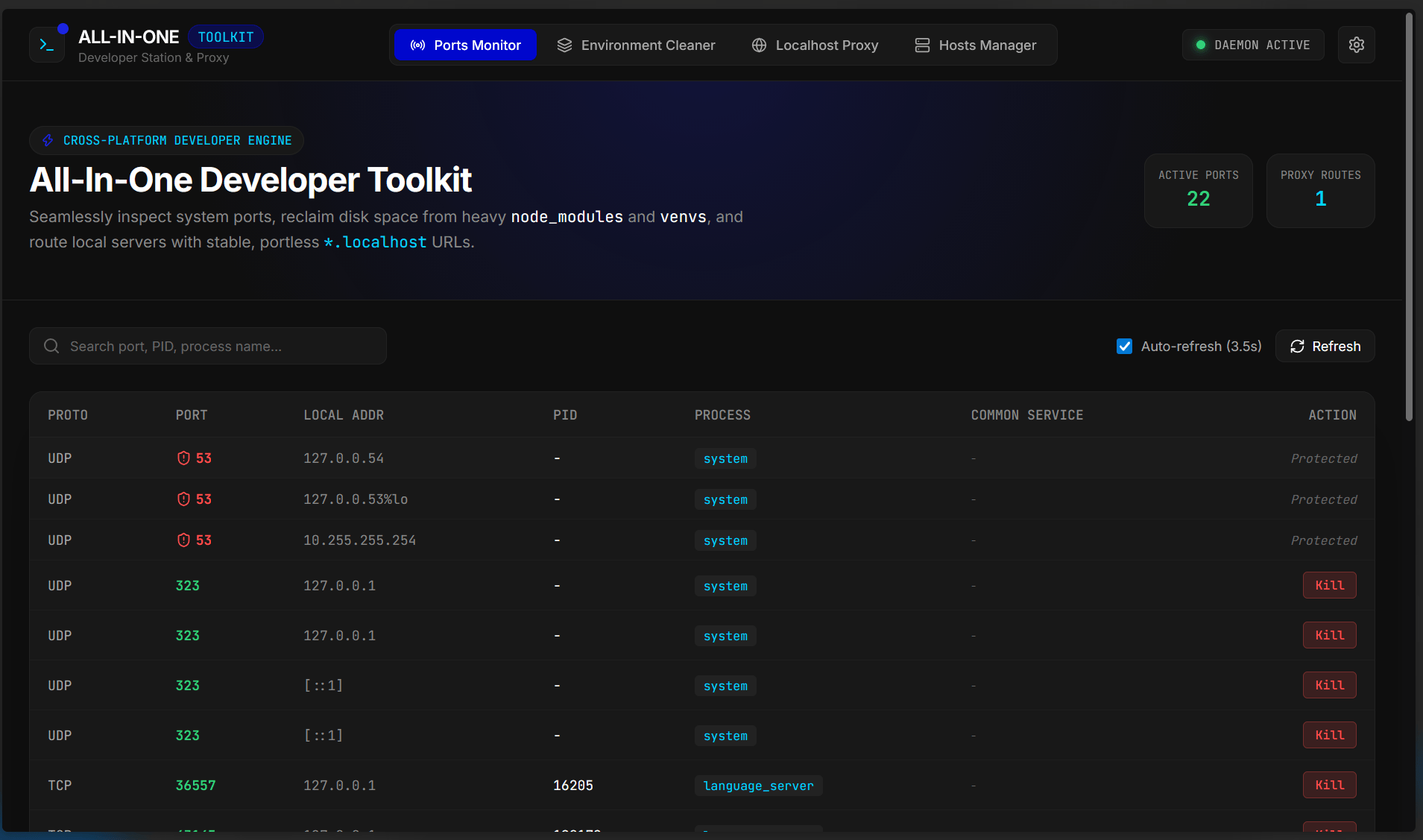
Launching the Dashboard
1
Start the dashboard server
Run the The server starts on port
toolkit ui command to start both the Toolkit daemon and the web UI server:3100 by default and registers the dashboard at http://toolkit.localhost.2
Open the dashboard in your browser
The dashboard opens automatically in your default browser at:You can also reach it directly at
http://localhost:3100 if you prefer bypassing the proxy.3
Start on a custom port (optional)
Use the The dashboard will then be available at
--port flag to bind the UI server to a different port:http://localhost:3200 and also at http://toolkit.localhost:3200 via the proxy.4
Suppress automatic browser launch (optional)
If you don’t want the browser to open automatically — for example in a headless or remote environment — pass the The server starts as usual; you can navigate to the dashboard manually whenever you’re ready.
--no-open flag:Dashboard Sections
The dashboard is organized into four functional areas, each corresponding directly to a CLI module:Ports
Inspect all ports currently listening on your system. View the protocol (TCP/UDP), PID, process name, and associated service metadata. Kill processes by port number directly from the UI — with the same safety barrier that protects system-critical ports (e.g., SSH on 22, DNS on 53).
Cleaner
Scan your project directories for heavyweight dependency folders —
node_modules, .venv, venv, env, and conda. Preview the disk space you’ll reclaim with a dry-run before committing to any deletions, and identify orphaned environments that lack a corresponding project manifest.Proxy Routes
View and manage all active
*.localhost proxy routes registered with the Toolkit daemon. Add a clean subdomain URL to any locally running server, remove routes you no longer need, or inspect which port each subdomain is forwarding to — all without touching configuration files manually.Hosts
Browse, add, and remove custom domain mappings in your system hosts file. All entries created through Toolkit are isolated inside clearly delimited blocks, so your existing hosts configuration is never overwritten or corrupted.
CLI Parity: Every action available in the CLI is also available in the dashboard — use whichever you prefer. There is no feature gap between the two interfaces.
toolkit ui Options
The dashboard requires the Toolkit daemon to be running in the background to handle proxy routing and API requests. The
toolkit ui command starts both the daemon and the UI server together, so you don’t need to start them separately.